August 14, 2026
IP KVM Video Quality Compared: Same Test Pattern, Every Device
We put the same test pattern through every device and captured matched crops. The differences are smaller than you'd think between the good ones, and stark for one.
By Andrew Douglass · Founder
Disclosure: Our articles contain affiliate links, including Amazon. If you buy through one, we may earn a commission at no extra cost to you, and as an Amazon Associate we earn from qualifying purchases. It never affects our testing, measurements, or verdicts. Full disclosure.
This IP KVM video quality comparison puts the same test pattern through every device we own and captures matched crops, so the differences are visible rather than asserted. The honest headline is that among the devices that capture correctly, the picture is more alike than different, because most share the same resolution ceiling and produce clean, readable images. Where quality genuinely diverges is at 4K, in how each device handles motion and codecs, and in one clear outlier whose capture path holds it back. Here is what actually determines the picture, and how the fleet sorts out.
What determines IP KVM picture quality
Four things set the quality of what you see, and they matter in this order for a KVM:
- Resolution ceiling. Set by the capture chip. A device with a Toshiba TC358743 caps at 1080p; a 4K-capable bridge like the Lontium in the NanoKVM Pro can capture more. You cannot get more detail than the chip captures.
- Codec and bitrate. H.264 is universal; H.265 (HEVC) delivers the same quality at a lower bitrate, so on a constrained link an H.265 device looks cleaner. The bitrate cap the device applies then decides how much artifacting appears under motion.
- Chroma subsampling. Most KVMs subsample color (4:2:0 or 4:2:2) to save bandwidth, which is invisible on text but can soften fine colored detail. A device that preserves more chroma renders colored UI elements more crisply.
- Range handling. Whether the device passes full-range or limited-range levels correctly determines if blacks are crushed or whites clipped. A mismatch here shows as washed-out or blocked-up areas.
For the administration a KVM exists to do, mostly static text, BIOS screens, and consoles, resolution and clean text dominate, and most devices do that well. The differences below matter more for motion and for anyone pushing 4K.
The method: identical pattern, matched crops
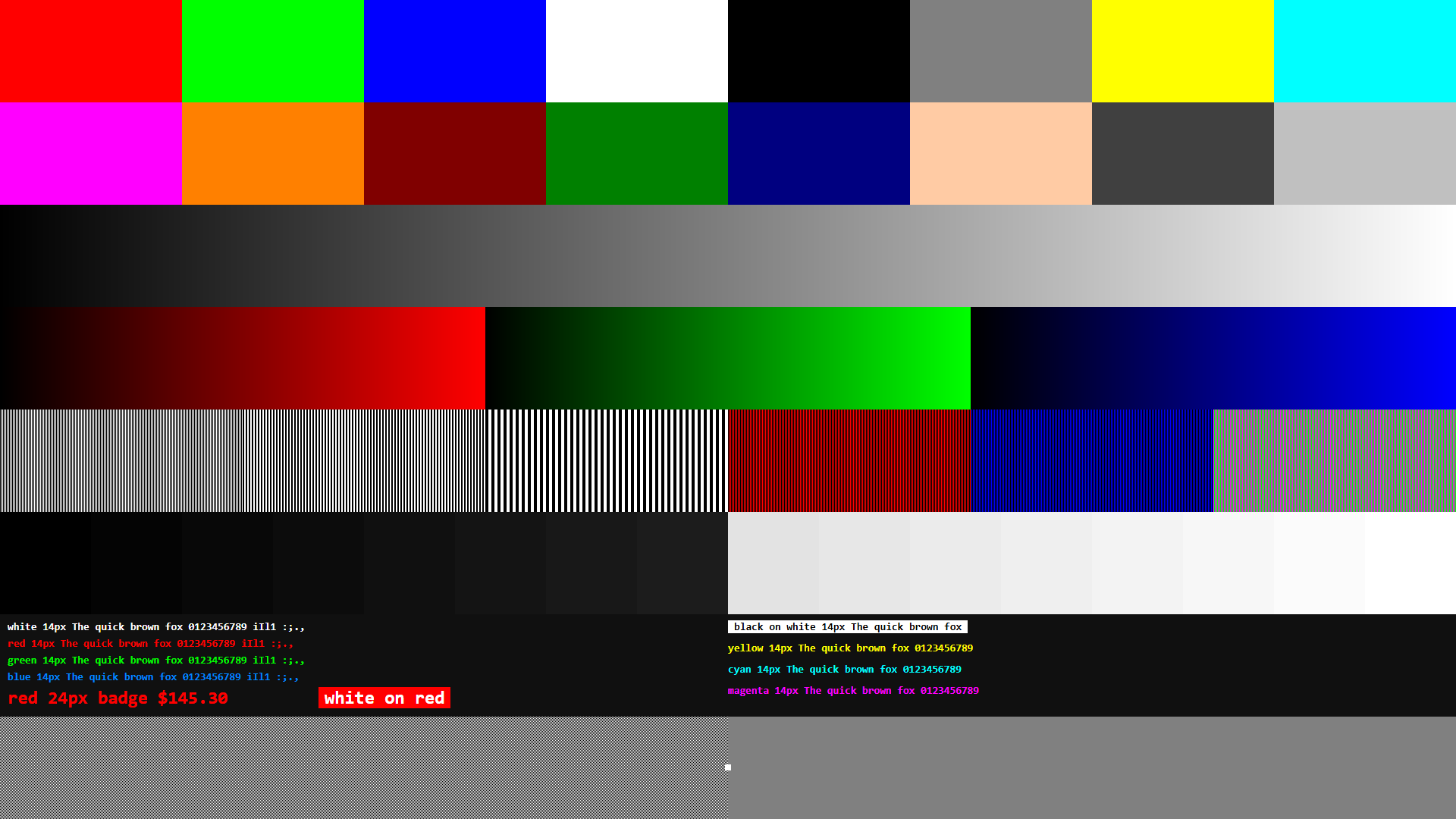
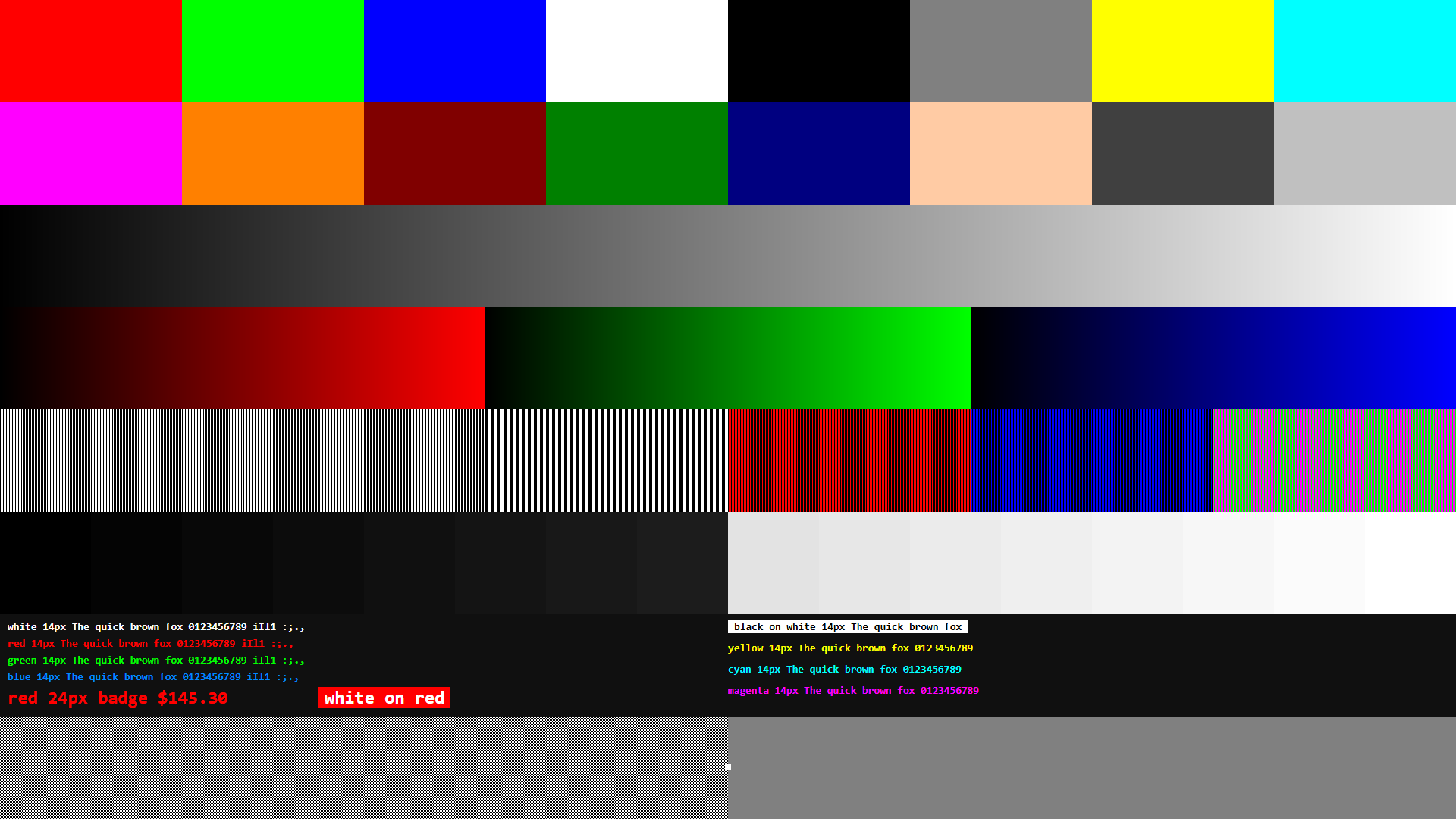
Every device sees the same test pattern from the same source, and we capture the client output with lossless screenshots rather than a camera, so what you compare is the delivered image and not a photo of a screen. The pattern is one self-contained HTML file with no dependencies, and you can run it yourself: download the test pattern, open it on the machine under test, and press F11. It packs the cases that actually break a KVM stream onto one screen: primaries and neutrals, a grey ramp and per-channel ramps, one-pixel gratings, near-black and near-white steps, and small coloured text on black.
Crops are aligned by locating the pattern rectangle inside each capture and then cropping in pattern coordinates, so every crop below shows the same region even though the devices rendered it at different sizes.
One caveat worth holding onto while reading them. These captures were taken in a browser window, and the video pane was not the same size in every one: it runs from 1382 pixels wide on the Luckfox to a full 1920 on the Comet Pro, against a 1920-pixel source. Where a difference below is small, that scaling could account for it. Where a difference is large and one-sided, it cannot, and we say so.
The 1080p tier: closer than you expect, until you look at red
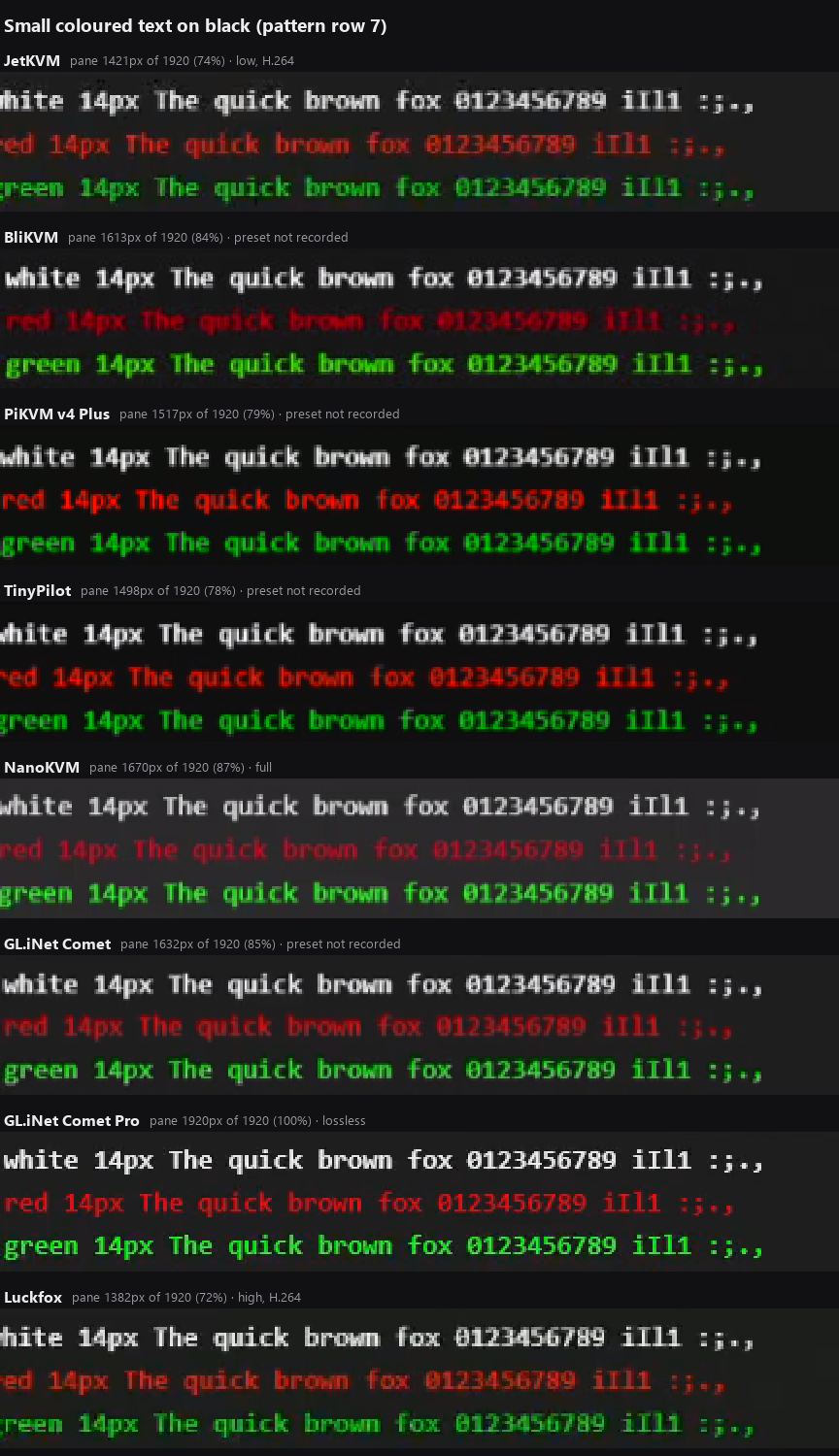
Most of the fleet captures at 1080p, though not through a shared chip. PiKVM V4 Plus and TinyPilot both use a Toshiba TC358743 HDMI-to-CSI bridge. JetKVM and Luckfox capture through the Rockchip RV1106's own pipeline, the GL.iNet Comet through the RV1126's, and the NanoKVM Full through the CV181x's. Different front ends, and on white and green text they land in almost the same place.
Red is where they come apart. White text is near-identical across the fleet and green is close behind, but red on black separates them cleanly: the Comet Pro and PiKVM hold the glyph edges, while the NanoKVM Full smears them badly enough to cost readability. That is a chroma handling result rather than a resolution one, which is why the pane-size caveat does not explain it away. The NanoKVM Full had the second-largest capture pane in the whole set and still produced the worst red in it.
Black handling splits the fleet a second time, along a different line. TinyPilot and PiKVM crush the bottom of the range, so the first near-black steps arrive as one flat black. The NanoKVM Full and the Comet lift them instead, turning black into visible dark grey. Neither behaviour is fatal, but if you spend your time in dark BIOS screens or a console with a dark theme, the crushing camp is throwing away detail you may want to see.

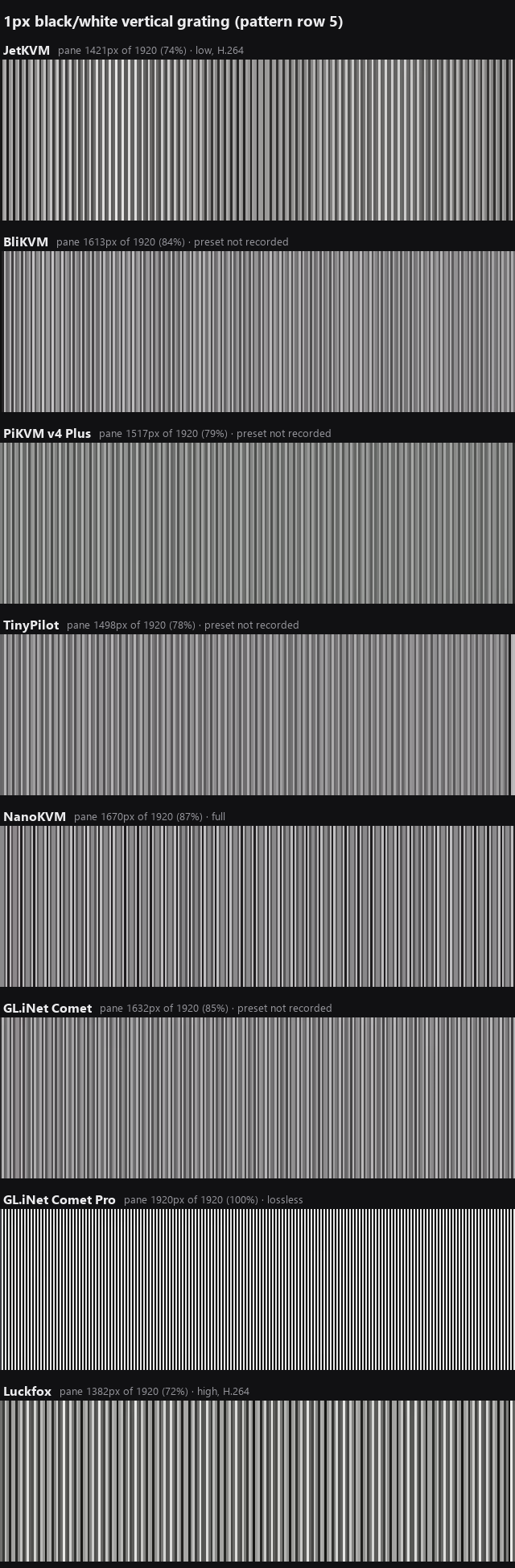
A third split shows up on the one-pixel gratings, which is the bluntest test of how much luma and chroma bandwidth survives the encode. A device that still resolves the alternating single-pixel lines is passing real detail through. One that renders them as flat grey has thrown that detail away before it ever reached your screen, and no amount of client-side sharpening brings it back.
The 4K tier: where detail actually increases
Only a couple of devices capture beyond 1080p, and this is where a real quality difference appears. The NanoKVM Pro, with its Axera SoC and Lontium LT6911UXC bridge, and the GL.iNet Comet Pro capture 4K at reduced frame rates, so on a genuinely 4K target they show detail the 1080p devices simply downscale away.
The Comet Pro is also the best looking device in this comparison, and not only because of its resolution ceiling. On the small red text, the case that separates the rest of the fleet, its glyph edges came out crisper than anything else we captured: an edge energy of 5.47 against the source pattern's own 6.14, with PiKVM next at 5.30 and the NanoKVM Full trailing at 3.17. It reproduces fine coloured detail closer to the original than any other device here.
Two things stop that being a clean sweep. The Comet Pro was captured at a lossless preset, which not every device in the set was, and it is the only capture taken at full native scale, so part of its margin comes from capture conditions rather than the hardware. What the numbers do rule out is pane size explaining the ranking by itself: the NanoKVM Full had the second-largest pane of any capture in the set and still produced the worst red in it.
Worth separating two things that are easy to confuse here. Sharpness and level accuracy are not the same measurement, and the fleet does not rank the same way on both. The BliKVM, for instance, tracks the source levels closely while producing the softest edges of anything we tested, which is exactly the signature you would expect from its capture path.
If your work is reading a 4K desktop natively, this tier is a step up. If your targets are 1080p it is no advantage, and the 1080p devices are often faster. The tradeoff and which devices reach 4K at what frame rate is in our best 4K IP KVM guide.
Codecs: less free quality than you would hope
Several devices support H.265 alongside H.264, and it is usually sold as a free picture upgrade. Our own A/B says: not on a static screen.
JetKVM supports both, so we captured the same pattern twice at the same quality preset and cropped the same region from each. The difference is measurable but tiny: a mean of 2.9 levels out of 255, confined entirely to glyph edges, and still faint when the difference is amplified eight times. On a still BIOS screen you would not pick the two apart.
That is not an argument against H.265, it is an argument about where its benefit lands. H.265 buys the same picture for fewer bits, so the payoff shows up as headroom on a constrained link and as less breakup under motion, neither of which a static pattern can show. Turn it on where your device and browser both support it, but expect a smoother stream rather than a sharper one.
One limitation we should state plainly: neither JetKVM capture had the bitrate readout on screen, so we can compare the two pictures but not the bits each one spent to produce them.

The clear outlier: the BliKVM
One device stands apart, and not in a good way. The BliKVM captures HDMI through a MacroSilicon MS2131 USB dongle rather than a direct CSI bridge. The MS2131 is USB 3.0 capable, but the BliKVM's Allwinner SoC offers only USB 2.0, so the link is throttled to 480 Mbps and the result is visible: at its default settings it delivered only around 18 frames per second within a low bitrate cap, so motion is choppy and the stream is soft compared with the CSI-based devices. For a static BIOS screen it is serviceable, but any motion, scrolling, dragging, an installer progressing, exposes the bottleneck. It is the one device where video quality is a genuine weakness rather than a fine distinction, and the reason is hardware, not tuning. The full explanation is in our BliKVM review and capture chip database.
The picture, device by device
| Device | Max capture | Codecs | Quality notes |
|---|---|---|---|
| Sipeed NanoKVM Pro | 4K | H.264/H.265 | Best detail; Lontium LT6911UXC bridge; ships with H.265 off |
| GL.iNet Comet Pro | 4K30 | H.264/H.265 | Native 4K detail; cleanest red text in the fleet |
| GL.iNet Comet | 2K60 | H.264/H.265 | Clean and fast; lifts near-black to grey |
| PiKVM V4 Plus | 1080p | H.264 | TC358743 CSI bridge; clean red, crushes near-black |
| JetKVM | 1080p | H.264/H.265 | RV1106 capture; H.265 barely differs on static content |
| NanoKVM Full | 1080p | H.264/H.265 | CV181x capture; weakest red text despite a large pane |
| TinyPilot Voyager 3 | 1080p | H.264 | Same TC358743 and uStreamer as PiKVM; crushes near-black |
| Luckfox Pico KVM | 1080p | H.264/H.265 | RV1106 capture, a near-exact JetKVM clone |
| BliKVM v4 | ~1080p (USB, ~18 fps) | H.264 | Soft, choppy under motion; the outlier |
The verdict
FAQ
FAQ
Less than you might expect among the good ones. Most capture at 1080p through similar chips and produce clean, readable pictures that are hard to tell apart on static content like BIOS screens and terminals. The real differences appear at 4K, with H.265 enabled, and under motion, and one device (the BliKVM) is a clear laggard due to its USB capture path.
For native 4K detail, the NanoKVM Pro and GL.iNet Comet Pro, the only devices that capture beyond 1080p. For clean 1080p, the good CSI-based devices are closely matched, so quality rarely decides between them. Enabling H.265 where supported mainly buys bitrate headroom; our own A/B on a JetKVM showed almost no visible difference on a static screen.
It captures HDMI over a USB-2-limited path rather than a direct CSI bridge, which caps it around 18 fps at a low bitrate. That makes motion choppy and the image soft compared with CSI-based devices. It is a hardware bottleneck, not a settings problem.
Often, yes. Enable H.265 if the device supports it and your browser can decode it, raise the bitrate if your link can carry it, and keep the source at a resolution the device captures natively. These help on any device except one bottlenecked in hardware like the BliKVM.
Every image here is captured losslessly from our own bench through the identical test pattern. The method is in our testing page, and the measured latency that pairs with picture quality is in our latency benchmarks.
Disclosure: this is published by WarpKVM, which is developing an IP KVM of its own and will face the same test pattern on the same rig.